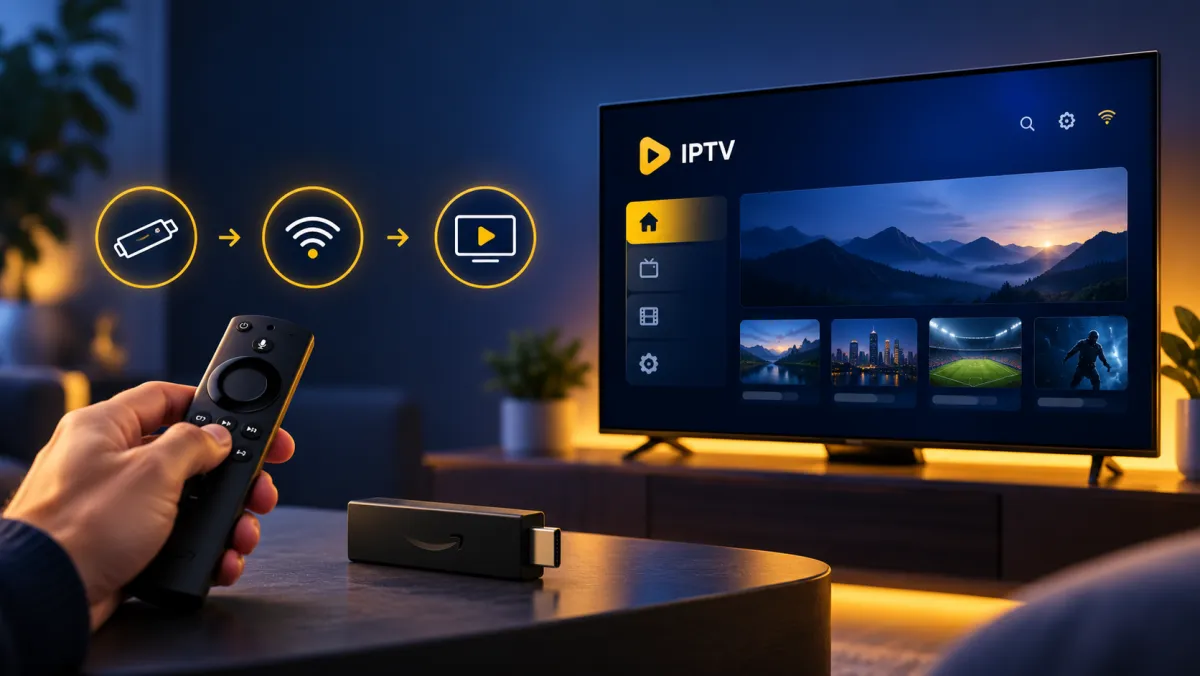
Most people are watching within a few minutes of ordering. This guide covers the general steps for the two most common set-ups, a Fire TV Stick (Firestick) and a Smart TV. Your activation message names the exact app to use and the details to enter, so keep it open while you follow along.
Before you start
- Connect the device to your home network. A cable (Ethernet) is the most reliable, and Wi-Fi works well when the signal is strong.
- Have your activation message ready. It contains your sign-in details.
- Check that your device is on our supported devices list.
Set up on a Firestick
- From the Fire TV home screen, open the search (magnifying glass) and look for the IPTV player named in your activation message.
- Select the app, choose Get or Download, then Open once it has installed.
- Enter the details from your activation message exactly as written, including capital letters.
- Wait for the channel list to load, then open Live TV and pick a channel.
If the app you were told to use is not shown in the search results, follow the alternative install steps in your activation message, or contact support and we will walk you through it.
Set up on a Smart TV
- Open your TV’s app store (the name depends on the brand).
- Search for the IPTV player named in your activation message, then install and open it.
- Add your details when the app asks for them, using the information from your activation message.
- Let the guide finish loading, then choose a channel.
If something does not work
- No channels appear: re-check the details for typos and restart the app.
- Picture keeps pausing: move closer to the router or use an Ethernet cable, and close other apps that stream or download at the same time.
- Still stuck: restart the device, then contact support and tell us the device model and what you see on screen.
New to TellyUK? You can start with a 24h free trial from the plans section.